

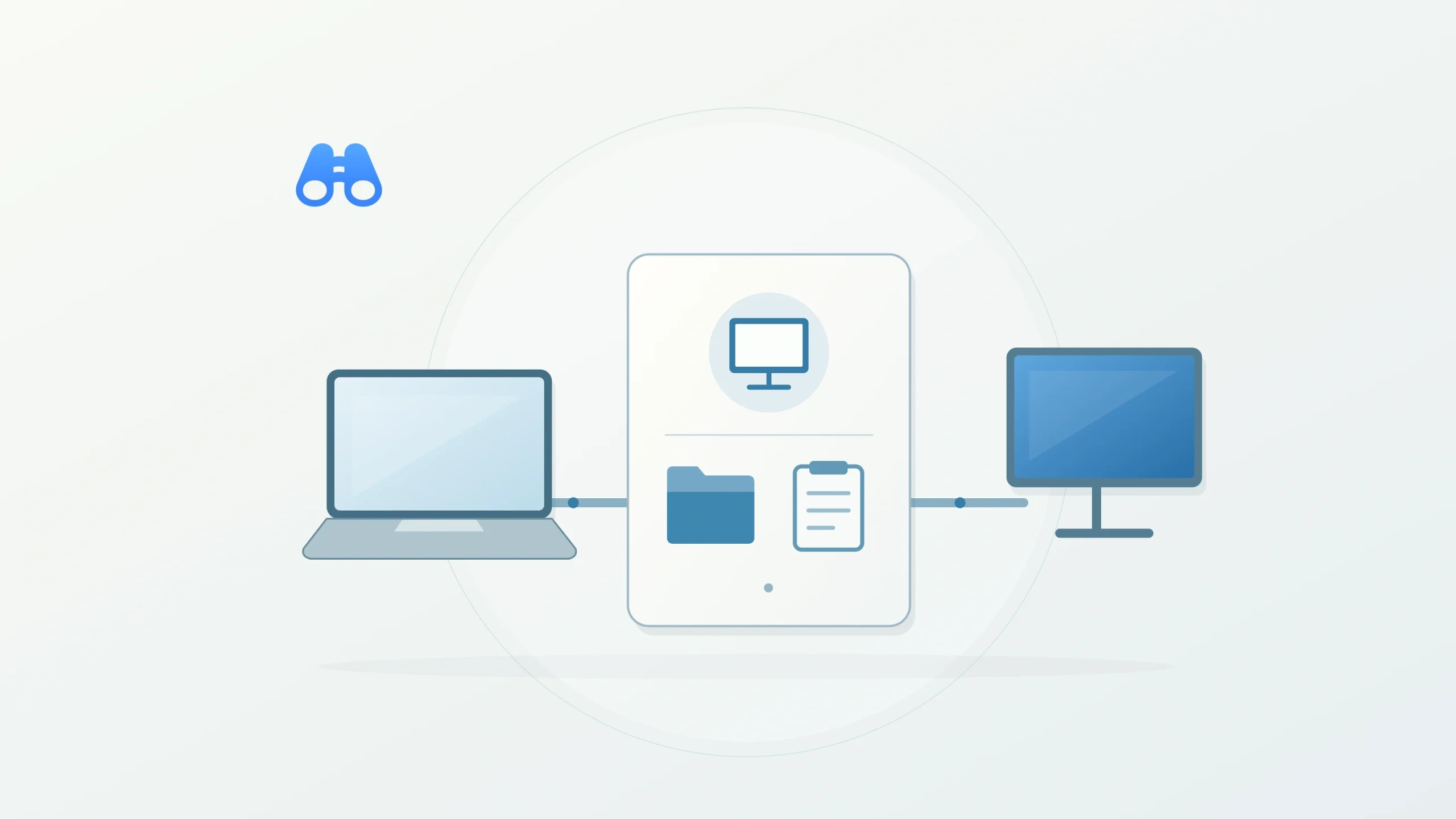
Conceptual illustration of reviewing a remote connection and shared local resources. Illustration: MacDigest.
Windows App 11.4.4, released October 15, adds a confirmation dialog for connections opened through .rdp files. It shows which remote PC you are connecting to and which local resources will be shared.
Pause before connecting
Use that pause to check the destination and the scope of sharing. If a computer name is unfamiliar or the listed resources are broader than the task needs, stop and check with whoever supplied the connection file before proceeding.
Microsoft also reports security fixes involving clipboard sharing, session watermarks, certificate handling and RDP licensing. The notes give no vulnerability identifiers or exploitation details.
Review the existing sharing settings
Microsoft’s macOS redirection guide explains the separate settings. Under Devices, edit the relevant connection and open Devices & Audio to review peripheral access. Clipboard copying can work in both directions, only from the Mac to the remote session, only in reverse, or be disabled.
The Folders tab lets you choose local folders and make them read-only. For .rdp files and managed resources, Settings > General also provides a folder choice that applies when folder redirection is enabled. Read-only sharing still allows files to be read, so choose a narrowly scoped folder.
Administrator restrictions can limit these options; the stricter setting takes precedence. These are existing controls. The release notes do not say the new dialog changes sharing defaults or lets you edit those settings inside it.
Check the Mac requirement
The App Store lists macOS 14.0 or later as the minimum. Check the installed version before your next remote session, and review the sharing details even when opening a familiar connection file. MacDigest has not tested this build.